Stop Screenshotting Recipes: A Better Way to Save Them
Recipe screenshots pile up, get lost and can't be searched or scaled. Here's how to turn them into real recipes and break the habit for good.
By Ayoub Farid · · 2 min read
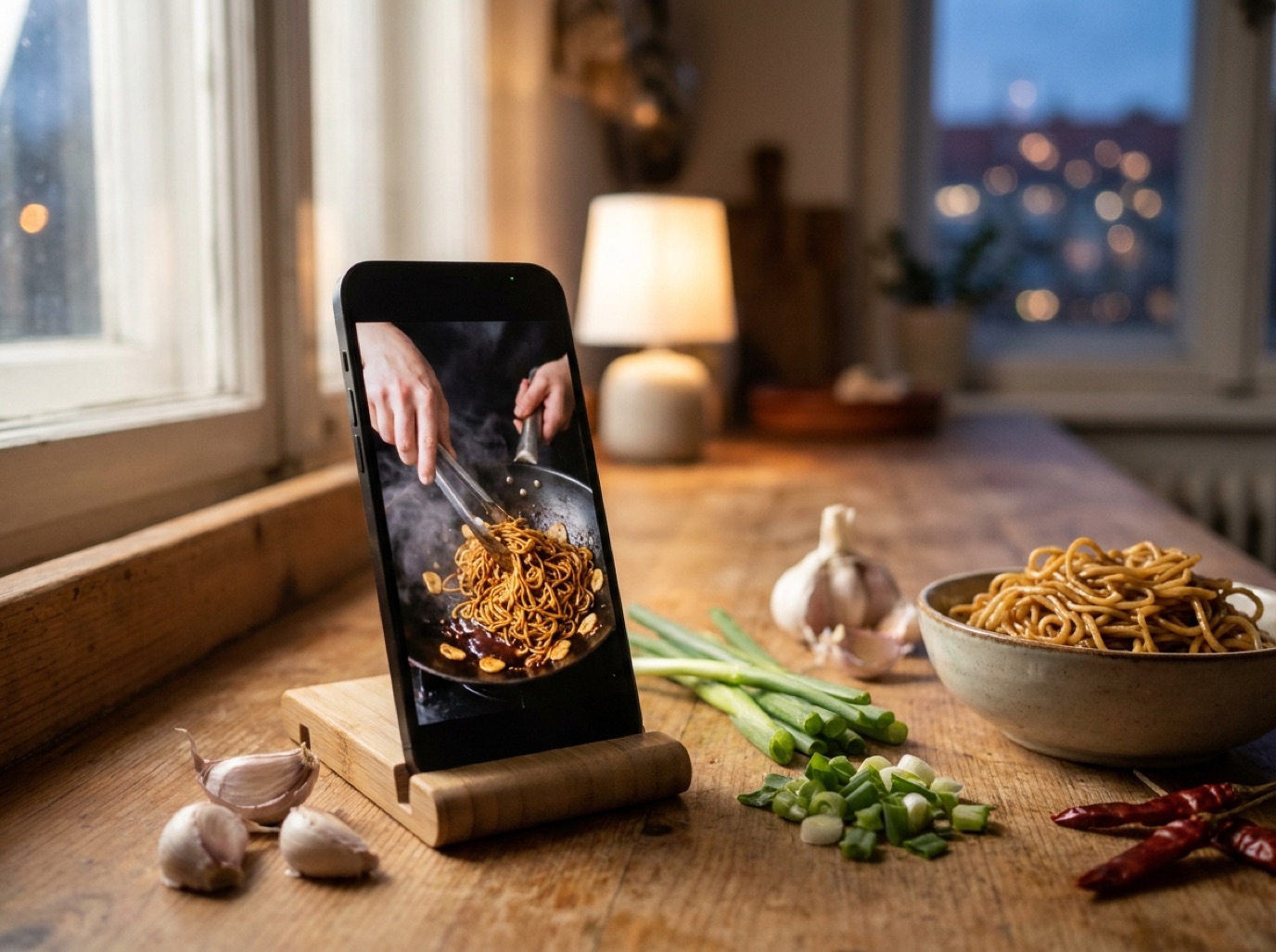
If your camera roll has hundreds of recipe screenshots between photos of your kids and your parking spot, you're not alone. Screenshots are the fastest way to "save" something, and the slowest way to find and cook it later.
Why screenshots fail as a recipe system
- Unsearchable: you can't easily search "chickpea" across 300 screenshots.
- Incomplete: the ingredient list is on one screenshot, the method on two others.
- Uncookable: you can't scale servings or tick off ingredients.
- Cluttered: they bury your actual photos and fill your storage.
- Context-free: no source link, so you can't check the original.
Rescue the screenshots you already have
- Create an album "Recipes to sort" and move recipe screenshots there.
- Pick the ones you'd genuinely cook in the next month.
- In SmartChef AI, use Camera Scan → choose from photos to turn each into an editable recipe with ingredients, steps and estimated nutrition.
- Save to a collection, then delete the screenshot.
- Delete the rest without guilt. If you haven't cooked it in a year, you won't.
For multi-screenshot recipes, scan the ingredient and method screenshots and combine them. Tips in recipe photo to text.
Break the habit: save in one tap instead
The reason we screenshot is speed. Replace it with something equally fast:
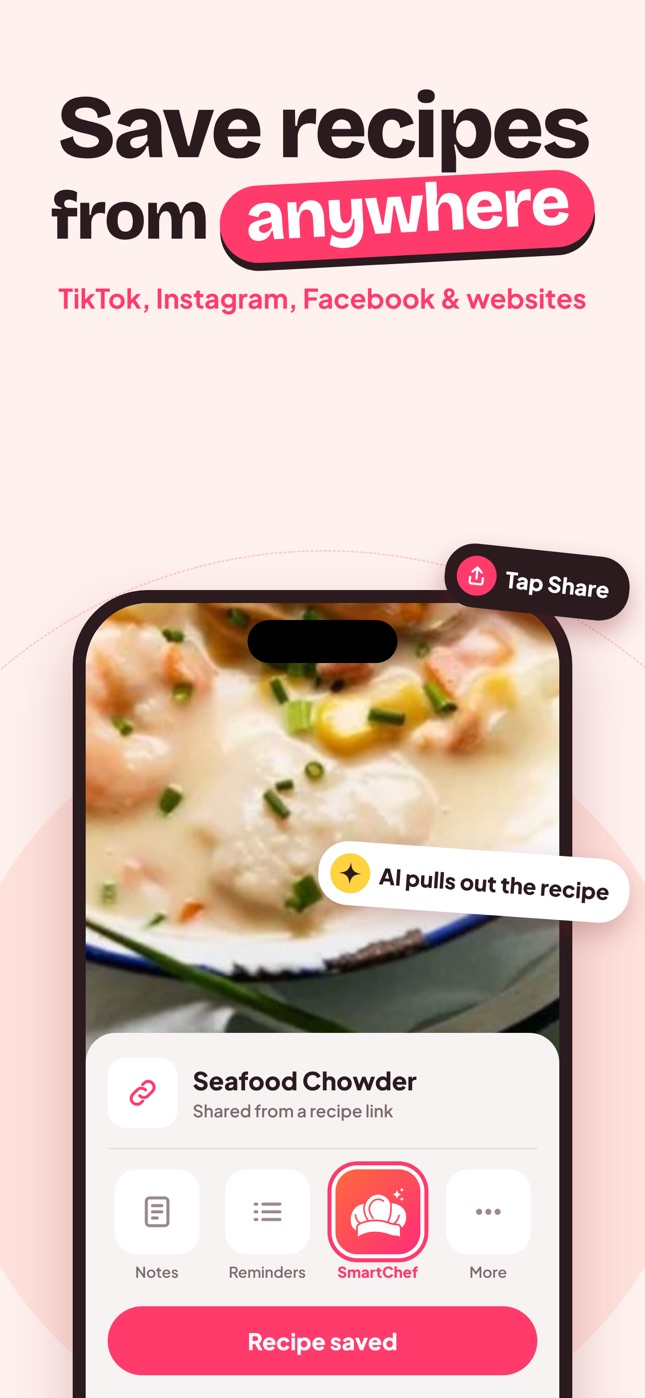
- On TikTok, Instagram, Facebook or a website: tap Share → SmartChef AI. Guides: TikTok, Instagram.
- On paper: Camera Scan.
Move SmartChef AI to the front of your share sheet so it's one tap.
What you gain
- Search by recipe name or ingredient.
- Servings you can scale.
- Nutrition estimates.
- Collections that match how you cook.
- A camera roll that's just photos again.
A 20-minute cleanup session
- Open Photos and search "recipe" or scroll through Screenshots.
- Select every recipe screenshot and add them to one album.
- Set a timer for 20 minutes.
- Go through the album: import the ones you'll cook soon, delete the rest.
- Repeat once a week until the album is empty.
Most people find that only a small share of their screenshots are recipes they still want. Deleting the rest is a relief.
When a screenshot is still useful
Some screenshots are worth keeping: a handwritten note from a relative, a recipe from a printed magazine you no longer have, or a dish photo you want to recreate. Scan those into the app and keep the original in a dedicated album.
Frequently asked questions
Can I convert recipe screenshots to text?
Yes. A recipe scanner reads the screenshot and creates an editable recipe.
What about screenshots of recipes in other languages?
AI scanning can read many languages. Translate or ask Cook AI to explain unfamiliar terms.
Should I keep the screenshots after importing?
Not usually. Keep only originals that matter, such as a handwritten note.
Save it in one tap
Every recipe you love, in one smart kitchen
SmartChef AI saves recipes from TikTok, Instagram and any website, scans cookbooks and handwritten cards, and answers your cooking questions with an AI chef. Free to download on iPhone and iPad.
Download on theApp Store